Pepys

Guide

How to make an SRT file

A working guide for anyone who needs a caption file that just plays, hand-typed in Notepad or exported from a transcript.

The short answer

To make an SRT file, write plain text in four-part blocks: a sequence number, a timecode line using a comma before the milliseconds (00:00:01,000 --> 00:00:04,000), the caption text, then a blank line before the next cue. Save it with a .srt extension in UTF-8 so accented characters render. Faster still, upload your recording, export a ready-made SRT, and fix only the line breaks and timing.

What's actually inside an SRT file?

An SRT file is plain text, and every caption is a block of four parts: a sequence number, a timecode line, one or two lines of text, then a blank line. The timecode is the part people get wrong. It reads `00:02:17,440 --> 00:02:20,375` – note the comma before the three-digit millisecond field, not a period. Hours, minutes, and seconds are always two digits; milliseconds are always three.

There is no formal standard behind any of this. SubRip's format is the most basic of all subtitle formats – a de-facto convention, not a spec published by a standards body. That's exactly why it plays almost everywhere. The trade-off: no official rulebook means edge cases (styling, positioning) simply aren't defined, so keep the text plain.

One detail that saves you from garbled output: save the file as UTF-8. SRT text is carried as UTF-8 when stored properly, so if your captions contain accented or non-Latin characters, the wrong encoding turns them into mojibake. Plain ASCII survives anything; the moment you have an é or a ü, encoding matters.

Type it by hand or export it from a transcript?

You can build an SRT in any plain-text editor. Open Notepad or TextEdit (in plain-text mode), write your blocks, and save as filename.srt with UTF-8 encoding. Number the cues 1, 2, 3, put the timecode on its own line with the ` --> ` arrow, add your text, then leave a blank line. That's the whole format. For a two-minute clip, hand-typing is fine.

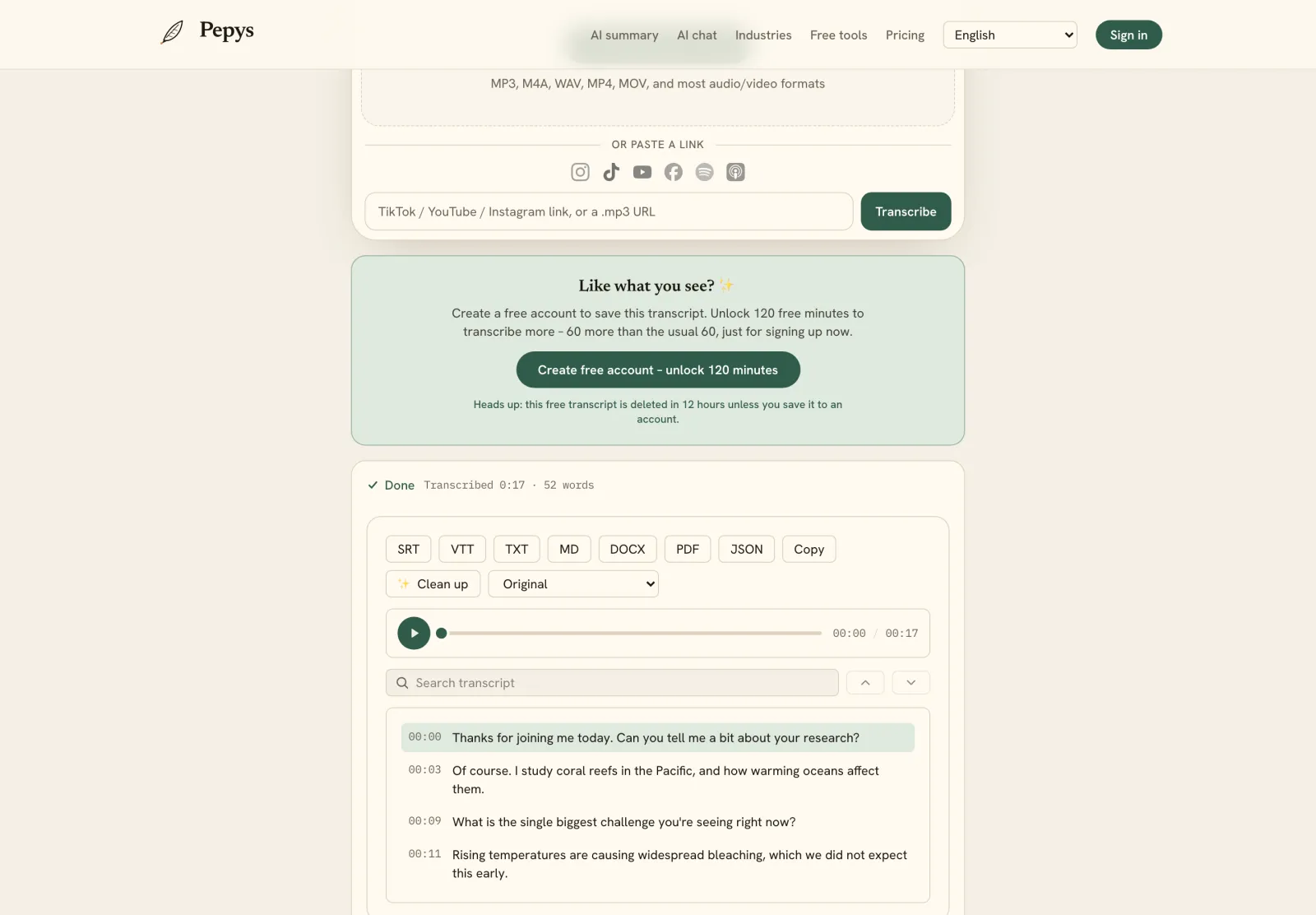
For anything longer, typing timecodes by hand is the slow part – you're pausing, scrubbing, and copying numbers for every line. The faster path is to start from a timestamped transcript and let the timings come from the audio. Upload your recording and export straight to SRT, then read the draft against the audio and fix the spots that matter. If you also need an editable document, export the same transcript to DOCX.

Whichever route you take, the cleanup work is the same one you'd do on any interview or recording transcript: correct names and jargon, then adjust where each cue starts and ends so it tracks the speech. The machine gets you a structurally valid file in minutes; your attention goes to timing and readability, not to typing brackets and commas.
What are the timing and line rules for readable captions?

Keep each caption to two lines. The Captioning Key from the DCMP states it plainly: no more than two lines per caption. A third line pushes text over the video and gives the reader too much to catch before the cue changes. If a sentence won't fit in two lines, split it across two consecutive cues instead of cramming.

Line length has a practical ceiling too. Netflix's timed-text style guide caps lines at 42 characters per line for English. Stay near or under that and captions won't get clipped on narrow players or crowd the frame. Longer than that and you're betting on the player wrapping gracefully, which it often won't.

Reading speed is what really determines timing. Netflix sets a ceiling of 20 characters per second for adult programs and 17 for children's. The DCMP frames the same limit in words per minute: 130 wpm for lower-level, 140 for middle, and 160 for upper-level material. If a cue flashes faster than that, hold it longer or trim the text.

Should you make an SRT or a WebVTT file?

Make an SRT for maximum compatibility; make a WebVTT (.vtt) for the web and for styling. The formats look almost identical, but WebVTT is published by the W3C on the Recommendation track – an actual specification, unlike SRT. The most visible difference in the timecode: WebVTT uses a full stop (period) before the thousandths field, where SRT uses a comma.

WebVTT also does things SRT can't. It supports styling and positioning through CSS, targeting cues with the ::cue pseudo-elements so you can set fonts, colours, and where text sits on screen. SRT has no defined way to do any of that. If you need captions to look a certain way in an HTML5 player, export to VTT rather than fighting SRT's plain-text limits.

For most uploads – YouTube, Vimeo, editing suites, social platforms – SRT is still the safe default, because everything reads it. Reach for WebVTT when your target is a web player you control and you care about presentation. Converting between them is trivial, since the block structure is the same and only the millisecond separator and header differ.

Why make an SRT file at all?

For a lot of published video, captions are an accessibility requirement, not a nicety. The W3C's WCAG 2.1 sets captions for prerecorded synchronized media as a Level A success criterion (SC 1.2.2), the baseline conformance level. If your video has audio and you're publishing it, an accurate caption file is part of meeting that bar.

Beyond compliance, an SRT is a small, portable artifact you own. It's searchable text tied to exact timecodes, so it doubles as a way to index a video and pull quotes from the spoken content. Because it's plain text, you can move it between platforms and keep it long after the tool that made it is gone.
The steps, in order

  1. 01

    Get a timestamped transcript

    Start from text that already carries timings – either transcribe your recording to a timestamped draft, or write your caption lines and note where each should appear.

  2. 02

    Build each cue as a four-part block

    Number the cue, put the timecode on its own line as 00:00:01,000 --> 00:00:04,000 (comma before the three-digit milliseconds), add the text, then leave a blank line.

  3. 03

    Keep lines short and readable

    Limit each caption to two lines and around 42 characters per line, and hold each cue long enough to read – roughly 20 characters per second or slower.

  4. 04

    Save as .srt in UTF-8

    Save the file with a .srt extension and UTF-8 encoding so accented and non-Latin characters render correctly instead of turning into garbled symbols.

  5. 05

    Test it in a player

    Load the video with the SRT in a media player and watch a few cues. Check that timing tracks the speech and no line runs off the frame, then adjust.

Tips from people who do this a lot

  • The comma before the milliseconds is what makes it SRT. A period there is WebVTT – mix them up and a strict player will reject the file.

  • Always number cues in unbroken order starting at 1. A skipped or duplicated index is a common reason a player silently drops captions.

  • Save as UTF-8, not ANSI or UTF-16. It's the single most common cause of accented characters showing up as mojibake in an otherwise valid file.

  • If a line won't fit in two rows, split the sentence across two consecutive cues rather than adding a third line.

  • Need styling or on-screen positioning? Make a WebVTT instead – SRT has no defined way to set fonts, colours, or placement.

Try it now

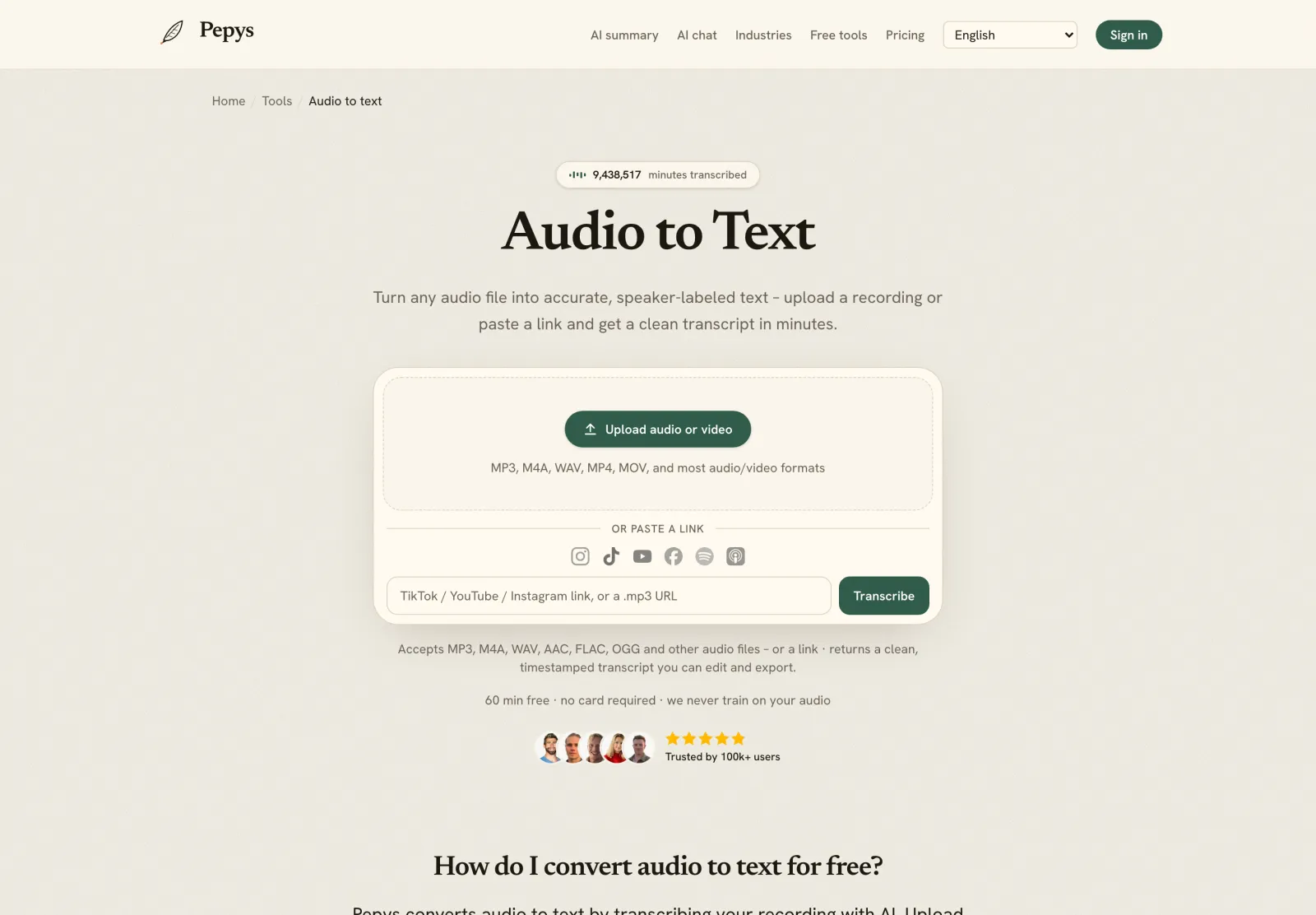
Drop in your recording or paste a link and get a clean, speaker-labeled transcript in minutes. Your first 60 minutes are free.

or paste a link
InstagramTikTokYouTubeFacebookSpotifyApple Podcasts

60 min free · no card required · we never train on your audio

PodcasterJournalistContent creatorResearcherStudent
Trusted by 100,000+ creators, podcasters, journalists & researchers

How to make an srt file – questions, answered

Can I make an SRT file in Notepad?

Yes. An SRT is plain text, so any editor works. Write each caption as a numbered block: the index, a timecode line with a comma before the milliseconds, the text, then a blank line. Save with a .srt extension and UTF-8 encoding so accented characters don't break.

What's the correct timecode format in an SRT file?

Hours:minutes:seconds,milliseconds, with a comma before the three-digit millisecond field and a space-arrow-space between start and end – for example 00:02:17,440 --> 00:02:20,375. Hours, minutes, and seconds are two digits each; milliseconds are always three. A period instead of the comma makes it WebVTT, not SRT.

How many lines and characters should each caption have?

Keep captions to two lines maximum, per the DCMP Captioning Key. Netflix's style guide caps lines at 42 characters and holds reading speed to about 20 characters per second for adult programs. If text won't fit, split it across two consecutive cues rather than adding a third line.

What's the difference between SRT and VTT?

Both are text caption files with near-identical structure. SRT is a de-facto format with no formal spec and uses a comma before the milliseconds; WebVTT is a W3C specification, uses a period, and supports CSS styling and positioning of cues. Use SRT for broad compatibility, VTT for styled web players.

Do I need captions on my video?

For published video with audio, usually yes. The W3C's WCAG 2.1 makes captions for prerecorded synchronized media a Level A success criterion – the baseline accessibility bar. An accurate SRT or VTT file is the standard way to meet it, and it also makes your video searchable and easier to repurpose.

References

  1. 1.Subtitles – SRT structure, comma millisecond separator, UTF-8 storageMatroska
  2. 2.Captioning Key – Text (two-line maximum per caption)Described and Captioned Media Program (DCMP)
  3. 3.Captioning Key – Presentation Rate (130/140/160 wpm ceilings)Described and Captioned Media Program (DCMP)
  4. 4.English Timed Text Style Guide (42 characters per line; 20/17 cps reading speed)Netflix Partner Help
  5. 5.WebVTT: The Web Video Text Tracks Format (period separator; ::cue styling)W3C
  6. 6.Understanding WCAG 2.1 – SC 1.2.2 Captions (Prerecorded), Level AW3C Web Accessibility Initiative

Keep reading

Don't just take our word for it.

Ask ChatGPT, Claude, or Perplexity what Pepys is and who it's for. One click, and your favorite AI does the homework.

Get your transcript – free to start

Pay as you go – credits never expire, nothing to cancel. Or start free with 60 minutes, no card.