Pepys

Guide

How to export a transcript from NotebookLM

For researchers and journalists reaching for an export button that isn't there – what NotebookLM will and won't hand you, and how to get a citable transcript anyway.

The short answer

NotebookLM has no one-click transcript export – no downloadable file with timestamps or speaker labels. To get text out, chat with your notebook, save the answer as a note, then export the note to a Google Doc. Treat that text as a paraphrase, not a verbatim record. For a transcript you can cite, with timestamps and speaker labels, upload the audio to a dedicated transcription tool instead.

What transcript data NotebookLM lets you export

Google's own export documentation is the clearest place to check. It lists four categories you can take out of a notebook: chat history, generated audio overviews, uploaded content, and generated notes (Export NotebookLM data, Google Workspace Admin Help). None of those four is a downloadable transcript of your audio. There is no timestamped file, and no speaker-labeled file, waiting behind an export button.

Structured export runs through notes. Save a note or report and it opens as a new Google Doc; any data tables inside it become a linked Google Sheet (Create & add notes, Google NotebookLM Help). You can also convert a note into a fresh source. What you can't pull is a formatted transcript, an SRT, or a VTT file – for a genuine document artifact like a DOCX transcript, that path doesn't exist inside NotebookLM.

One real export is the media itself. The generated Audio Overview downloads as an audio file – handy, but it's two AI hosts discussing your sources, not your original recording.

No timestamped or speaker-labeled transcript file

Here's the limit that trips up researchers and reporters. Nothing in NotebookLM's documentation describes a transcript, SRT, or VTT export, and the documented export scope contains no timestamped or diarized artifact for an uploaded audio source. It's a gap confirmed by absence: the feature isn't advertised because there isn't one to advertise.

Timestamps and speaker attribution decide whether a quote is citable. Transcription is an act of representation, and the choices behind it shape the conclusions you can defend (Oliver, Serovich & Mason, 2005, Social Forces). A published quote has to trace back to who said it and when. Without speaker diarization, you can't reliably tell one voice from another in the output.

There's also the exact-wording problem. Scholarly citation asks that a quotation match the source's wording, spelling, and interior punctuation exactly, flagging any error with [sic] (APA Style). A summary you can't check against the audio won't clear that bar.

How do you get text out of NotebookLM today?

The working method is a chat-to-note-to-Docs loop. Open the notebook, ask the chat to lay out the passage you need from the audio source, and save its answer as a note. Then export that note to a Google Doc. It's a real way to get words onto a page – just not a reliable way to get a verbatim transcript.

The catch sits in how language models handle long text. They paraphrase, omit, and truncate rather than reproduce a source word for word. A peer-reviewed survey documents that deep-learning generation is prone to hallucinate unintended text that fails user expectations (Ji et al., 2023, ACM Computing Surveys). A large human evaluation separately found summarizers highly prone to produce content unfaithful to the input (Maynez et al., 2020, ACL). So read every reproduced line against the recording before you trust it.

Treat the output as a draft, not a record. It's fine for orientation and search. It gets risky the moment you paste it into a quote.

Where NotebookLM fits – and where it doesn't

Understanding is the job NotebookLM is built for. Upload an audio file, and MP3, WAV, and other formats all count as supported source types. From there it becomes something you can question and turn into an Audio Overview with two AI hosts, now generated in 80+ languages (Generate an Audio Overview, Google NotebookLM Help; The Keyword, 2025). For grasping what's in a recording, that's genuinely useful.

The artifact job is a different thing. Each source is capped at 500,000 words or 200MB per uploaded file, and that cap is identical on Free, Plus, and Pro (Upgrade NotebookLM, Google NotebookLM Help). Upgrading buys more sources per notebook and more Audio Overviews per day, not a bigger single file. So the 200MB ceiling, not your plan, is what gates a long interview recording, and whether a given 1–3 hour file clears it depends on its size and codec.

On research versus transcript export, the factual comparison lays out what each tool is for. Questioning a recording and owning a transcript file are two different jobs.

Upload the audio to a transcription tool instead

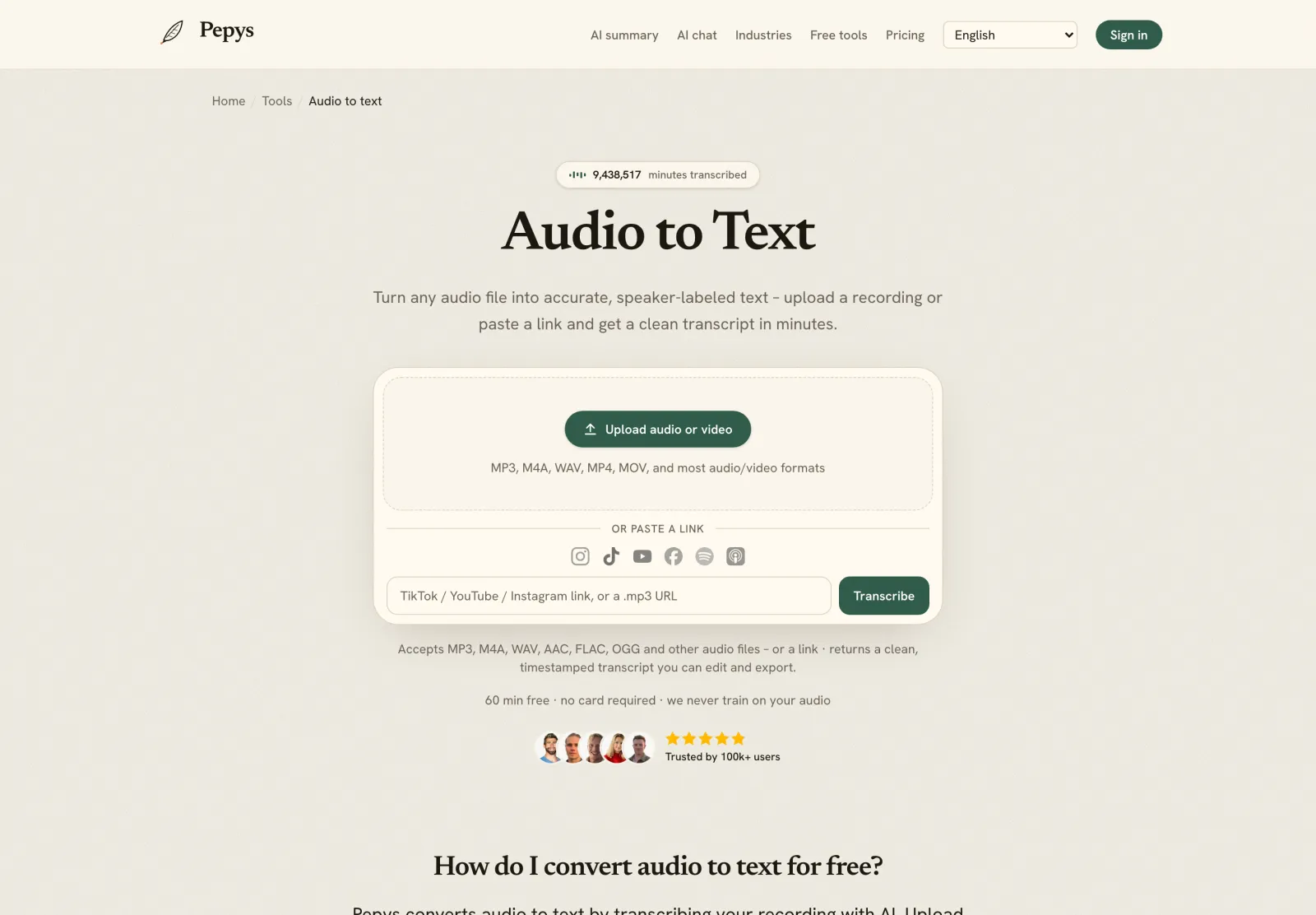
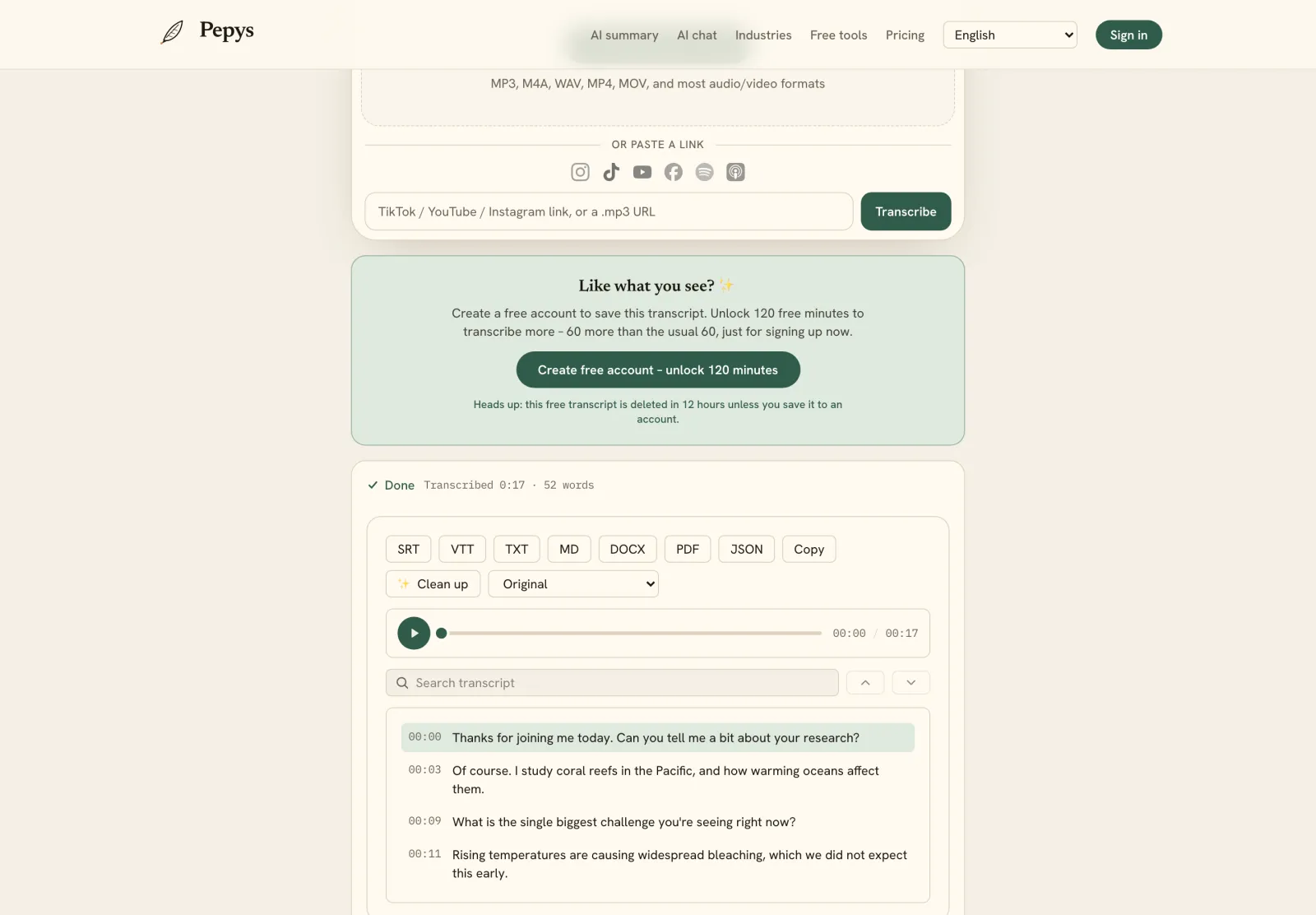
When the deliverable is the file itself, skip the workaround. Send your recording to a dedicated transcription tool and you get back an editable transcript with timestamps and speaker labels in a single pass – the exact artifact the note-to-Google-Docs route can't produce. From there you can export to TXT, DOCX, or SRT and VTT for captions.

This also sidesteps the verbatim problem entirely. A transcription engine is built to reproduce what was said, so you're correcting a handful of words, not fact-checking a paraphrase. Keep the timestamps and you can jump back to any line, hear it in context, and quote it with confidence.

Use NotebookLM for what it's good at: asking questions across a stack of sources. Reach for a transcription tool when the thing you actually need is the transcript.
The steps, in order

  1. 01

    Chat with your audio source

    Open the notebook, select the uploaded audio, and ask the chat to lay out the passage or answer you need in full.

  2. 02

    Save the answer as a note

    Pin the response as a note so it survives the chat reset.

  3. 03

    Export the note to Google Docs

    Send the note to a new Google Doc; any data tables inside it land in a linked Google Sheet.

  4. 04

    Read it against the recording

    Play the audio and correct the text by hand. A chat reproduction paraphrases, drops, or rewords lines, so it isn't verbatim – fix names, numbers, and any quote you plan to publish against what was actually said.

  5. 05

    For a citable transcript, use a transcription tool

    Need timestamps and speaker labels? Upload the original file to a dedicated transcription tool and export the editable transcript.

Tips from people who do this a lot

  • The generated Audio Overview downloads as an audio file, but it's two AI hosts discussing your sources – not a recording of your interview.

  • Never paste a chat reproduction straight into a published quote.

  • The 200MB per-source cap is the same on Free, Plus, and Pro; paying more adds sources per notebook, not room for one bigger file.

  • For the best of both, transcribe the audio first, then upload that transcript as a text source in NotebookLM. You get a citable file and a notebook you can question, with the chat quoting a verbatim source instead of paraphrasing your recording.

  • Ask narrow questions when you use the chat – a request for one specific answer round-trips into a cleaner note than 'summarize everything.'

Try it now

Drop in your recording or paste a link and get a clean, speaker-labeled transcript in minutes. Your first 60 minutes are free.

or paste a link
InstagramTikTokYouTubeFacebookSpotifyApple Podcasts

60 min free · no card required · we never train on your audio

PodcasterJournalistContent creatorResearcherStudent
Trusted by 100,000+ creators, podcasters, journalists & researchers

Export transcript from notebooklm – questions, answered

Can you download a transcript from NotebookLM?

There's no one-click transcript download. NotebookLM's export covers chat history, generated audio overviews, uploaded content, and notes – none of which is a transcript file carrying timestamps or speaker labels. The usual workaround is to save a chat answer as a note and export that note to a Google Doc.

Does NotebookLM export SRT or VTT caption files?

No. The notes export sends notes to a Google Doc and any data tables to a Google Sheet, and nothing in the documentation describes an SRT, VTT, or formatted transcript file. For caption files, transcribe the audio in a tool that exports SRT and VTT directly.

Are NotebookLM's chat answers a verbatim transcript?

Treat them as paraphrase, not a record. Language models tend to reword, omit, or truncate source text rather than reproduce it exactly, so a chat answer isn't a reliable verbatim transcript. Always check any reproduced line against the original audio before you quote it.

Will a long interview recording fit in NotebookLM?

Each source is capped at 500,000 words or 200MB per uploaded file, and that cap is identical on Free, Plus, and Pro. Whether a given 1–3 hour recording fits depends on its file size and codec, not on your plan. Upgrading adds more sources, not a bigger single file.

Is NotebookLM a transcription tool?

Not really. It turns your audio into a queryable source for research and Audio Overviews, available in 80+ languages, but it doesn't produce a transcript file you can download and edit. A dedicated transcription tool is built to hand you that: a file with speaker labels you can cite and jump back into.

References

  1. 1.Supported file types and source limits (500,000 words / 200MB; 50 sources free)Google NotebookLM Help
  2. 2.Export NotebookLM data – the four exportable categoriesGoogle Workspace Admin Help
  3. 3.Create & add notes – export notes to Google Docs and data tables to Google SheetsGoogle NotebookLM Help
  4. 4.Generate an Audio Overview – two-host format, 80+ languagesGoogle NotebookLM Help
  5. 5.Audio and Video Overviews in more languages and longer content (Aug 25, 2025)The Keyword (Google Labs)
  6. 6.Upgrade NotebookLM – per-plan limits (sources per notebook, notebooks, audio/day)Google NotebookLM Help
  7. 7.Ji et al. (2023), Survey of Hallucination in Natural Language GenerationACM Computing Surveys 55(12)
  8. 8.Maynez, Narayan, Bohnet & McDonald (2020), On Faithfulness and Factuality in Abstractive SummarizationACL 2020
  9. 9.Oliver, Serovich & Mason (2005), Constraints and Opportunities with Interview TranscriptionSocial Forces (Oxford University Press)
  10. 10.Quotations that contain errors – the [sic] conventionAPA Style

Keep reading

Don't just take our word for it.

Ask ChatGPT, Claude, or Perplexity what Pepys is and who it's for. One click, and your favorite AI does the homework.

Get your transcript – free to start

Pay as you go – credits never expire, nothing to cancel. Or start free with 60 minutes, no card.